pwnable 환경 설정하기
목차
유용한 도구들와 설정들 새 데스크탑을 구매하고 드라이버 이슈 등으로 자주 환경설정을 해보니 작성해두고 참고하면 좋을 것 같다는 생각이 들었다. 설치 환경은 Windows 11 + Ubuntu(WSL)이므로 다른 배포판을 사용하려면 변경이 필요하다. 또 있으면 좋을법한 설정이나 도구가 있으면 추가할 예정이다. 재시작 후 터미널에서 다음 명령어 실행 원하는 테마 설치 후 만약 여러 창을 왔다갔다 해야한다면 이게 더 편하다. Broadcom 공식 홈페이지에서 Register를 해야한다. 이 때 생각없이 대학교 메일을 썼더니 인증 메일이 안와서 한참 고생한 경험이 있으니 무난하게 이후 나타나는 주소 입력창을 채워주고 다시 다운로드 버튼을 누르면 진짜 설치 완료! x86/x86-64 아키텍처만 지원하긴 하지만 IDA를 무료로 사용할 수 있게 되었다. hex-rays 공식 홈페이지에서 지금은 괜찮은 모양인데, 속도가 너무 느려 본사인 벨기에 vpn을 이용하니 훨씬 빨랐던 경험이 있다. 예시로 IDA 바로가기를 만들어서 해당 폴더에 올려둔 뒤, 바이너리를 우클릭해서 레지스트리를 편집하면 Windows 10 메뉴로 돌아갈 수 있는 것 같은데 새 컴퓨터 느낌이 안나서 생략! 0x00. Introduction
0x01. Windows
WSL
Turn Windows Features On or Off(Windows 기능 켜기/끄기)에서 다음 항목 체크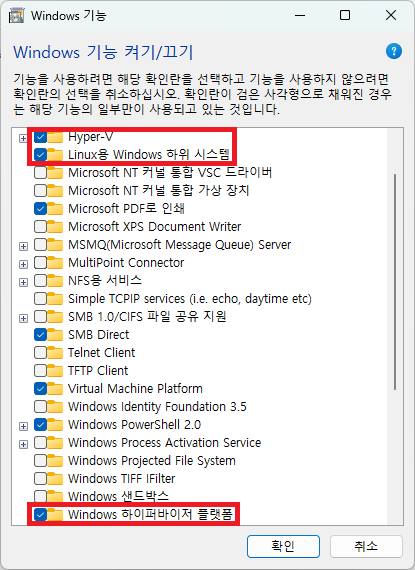
# WSL 설치
wsl --install

# 설치 가능한 패키지 및 버전 확인
wsl --list --online

# 특정 버전
wsl --install -d Ubuntu-[xx.xx]
# 가장 최신 버전
wsl --install -d Ubuntu
Visual Studio Code
테마 설정
ctrl + shift + p -> Preferences: Color Theme -> Browse Additional Color Themes...로 선택한다. 단축키 설정
ctrl + shift + p -> Preferences: Open Keyboard Shortcuts(JSON)에 다음 내용을 붙여넣는다. 에디터와 터미널을 왔다갔다 하기에 편한 설정이다.[
{
"key": "ctrl+`",
"command": "workbench.action.terminal.focus"
},
{
"key": "ctrl+`",
"command": "workbench.action.focusActiveEditorGroup",
"when": "terminalFocus"
}
][
{
"key": "ctrl+`",
"command": "workbench.action.focusNextGroup"
}
] VMware
gmail.com을 쓰도록 하자.Software -> VMware Cloud Foundation -> My Downloads를 선택VMware Workstation Pro를 찾아서 원하는 release를 선택I agree to the Terms and Conditions를 체크해야 다운로드 버튼이 토글되므로 주의 IDA Free
Products -> IDA Free 선택 후 이메일 인증을 통해 라이센스를 받으면 된다. shell:sendto
win + r 실행 창에서 shell:sendto를 입력하면 파일을 우클릭했을 때 send to(보내기)에 보이는 프로그램 목록을 등록할 수 있다.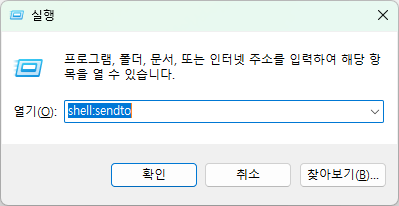
send to(보내기)의 IDA를 선택하면 바로 바이너리를 분석할 수 있다. Windows 11부터는 Show more options(추가 옵션 표시)를 눌러야 보여서 조금 불편하긴 하지만 꽤나 유용하다. 0x02. Linux
Packages
# initialize
sudo apt update
sudo apt upgrade -y

# oh my zsh
sudo apt install zsh git -y
sh -c "$(wget https://raw.githubusercontent.com/ohmyzsh/ohmyzsh/master/tools/install.sh -O -)"

# zsh plugins
git clone https://github.com/zsh-users/zsh-autosuggestions ${ZSH_CUSTOM:-~/.oh-my-zsh/custom}/plugins/zsh-autosuggestions
git clone https://github.com/zsh-users/zsh-syntax-highlighting.git ${ZSH_CUSTOM:-~/.oh-my-zsh/custom}/plugins/zsh-syntax-highlighting
sed -i 's/^plugins=(git)$/plugins=(git zsh-autosuggestions zsh-syntax-highlighting)/' ~/.zshrc
source .zshrc

# python packages
sudo apt install python3-pwntools -y

# one gadget
sudo apt install ruby -y
sudo gem install one_gadget

# gef
bash -c "$(wget https://gef.blah.cat/sh -O -)"
jekyll
# 의존 패키지 설치
sudo apt install ruby-full build-essential zlib1g-dev -y

# 사용하는 shell에 맞게 파일을 변경할 것
echo '# Install Ruby Gems to ~/.gems' >> ~/.zshrc
echo 'export GEM_HOME="$HOME/.gems"' >> ~/.zshrc
echo 'export PATH="$HOME/.gems/bin:$PATH"' >> ~/.zshrc
source ~/.zshrc

# jekyll 설치
gem install jekyll bundler

# github.io 레포지토리 등 jekyll 디렉토리에서 실행
cd fitbl4nk.github.io
bundle install
zola
# 가장 최신 버전의 zola 다운로드(https://github.com/getzola/zola/releases)
wget https://github.com/getzola/zola/releases/download/v0.20.0/zola-v0.20.0-x86_64-unknown-linux-gnu.tar.gz
rm zola-v0.20.0-x86_64-unknown-linux-gnu.tar.gz
sudo mv zola /usr/local/bin

# github.io 레포지토리 등 zola 디렉토리에서 실행
cd bl4nk.kr
zola serve
Docker
# Uninstall old versions
for pkg in docker.io docker-doc docker-compose docker-compose-v2 podman-docker containerd runc; do sudo apt-get remove $pkg; done

# Add Docker's official GPG key:
sudo apt-get update
sudo apt-get install ca-certificates curl
sudo install -m 0755 -d /etc/apt/keyrings
sudo curl -fsSL https://download.docker.com/linux/ubuntu/gpg -o /etc/apt/keyrings/docker.asc
sudo chmod a+r /etc/apt/keyrings/docker.asc

# Add the repository to Apt sources:
echo \
  "deb [arch=$(dpkg --print-architecture) signed-by=/etc/apt/keyrings/docker.asc] https://download.docker.com/linux/ubuntu \
  $(. /etc/os-release && echo "${UBUNTU_CODENAME:-$VERSION_CODENAME}") stable" | \
  sudo tee /etc/apt/sources.list.d/docker.list > /dev/null
sudo apt-get update

# Install the Docker packages
sudo apt-get install docker-ce docker-ce-cli containerd.io docker-buildx-plugin docker-compose-plugin -y
Config
# zsh
echo "export WIN=\"/mnt/c/Users/bl4nk\"" >> ~/.zshrc
echo "alias cdd=\"cd \$WIN\"" >> ~/.zshrc
echo "mkdir -m 700 -p \${SHELL_SESSION_DIR:=\${ZDOTDIR:-\$HOME}/.zsh_sessions}" >> ~/.zshrc
echo "HISTFILE=\$SHELL_SESSION_DIR/\$TERM_SESSION_ID.history" >> ~/.zshrc
echo "source \$ZSH/oh-my-zsh.sh" >> ~/.zshrc
echo "unsetopt inc_append_history share_history" >> ~/.zshrc
echo "unset HISTFILE" >> ~/.zshrc

# tmux
echo "setw -g mouse on" > ~/.tmux.conf

# github
git config --global user.email "bl4nk@XXXX.YYY"
git config --global user.name "bl4nk"